

Key Takeaways:
- Connect Power BI to Business Central through five methods: AppSource apps, OData feeds, Power BI Desktop, embedded reports, or Microsoft Fabric.
- Business Central 2024 wave 2 (v25.1 and later) added ready-made Power BI apps that now cover nine functional areas: Finance, Sales, Purchasing, Inventory, Inventory Valuation, Manufacturing, Projects, Subscription Billing, and Sustainability, per Microsoft's official documentation.
- Canadian teams need to check where their Power BI tenant stores data before connecting, especially under Québec's Law 25 and federal PIPEDA rules.
- Since 1997, Gestisoft has helped Canadian SMBs navigate their ERP needs, and today they specialize in getting Business Central and Power BI working together without licensing surprises.
To connect Power BI to Business Central, you have five official routes: install the built-in Power BI apps from AppSource, use OData web services, build a custom model in Power BI Desktop, embed reports inside the ERP, or route your data through Microsoft Fabric.
The right pick depends on your setup and your team's skills.
Most teams start with one method, get stuck, and jump to another six months later. This guide walks through the five ways to connect Power BI to Business Central, when each one fits, what to check before you start, and the Canadian data rules most articles skip.
The payoff of getting this right is more than faster dashboards. It is a project that ships without back-and-forth about what a report is even supposed to mean. That gets easier when the people building your setup know your industry as well as they know the software.
A distribution client of ours put it plainly:
“Gestisoft's consultants come from the industry, so when we worked together, we spoke the same language and shared the same vision of what was important and necessary. They guided us in implementing industry best practices. Throughout the project, their industry expertise eliminated any potential irritants that might have risen from inexperience in the distribution environment.”
That is what a well-scoped Power BI and Business Central project should feel like: less translation, more traction.
Get Expert Help From a Microsoft Solutions Partner
Skip the licensing surprises. Get a right-sized plan from a team that has run this setup for hundreds of Canadian SMBs.
 Book a free consultation
What Are the Best Ways to Connect Power BI to Business Central?
There are five official ways to connect Power BI to Business Central. Each one fits a different team size, skill level, and data setup.
1. Install the Built-In Power BI Apps From AppSource
If you want the fastest way to connect Power BI to Business Central, start here.
Microsoft ships ready-made Power BI apps for Business Central across nine functional areas: Finance, Sales, Purchasing, Inventory, Inventory Valuation, Manufacturing, Projects, Subscription Billing, and Sustainability. Install them from AppSource, point them at your BC environment, and you get standard dashboards in minutes.
The catch is that the data model is fixed. You cannot add new fields or swap the calculations. If your reporting needs match what Microsoft ships, this method saves months. Full steps sit in Microsoft's guide to installing Power BI apps for Business Central.
2. Connect Power BI to Business Central Using OData Web Services
This is the most flexible method and the one most consultants pick when the built-in apps fall short.
Business Central exposes its data through OData v4 web services. You point Power BI Desktop at the OData endpoint, authenticate, and pick the tables or queries you want.
The upside is total control over what you report on. The downside is you own the modelling work, so you need someone comfortable with Power Query and DAX. If your team can already build a Power App on top of your data, they have the skills for this. The full spec lives in the OData web services documentation.
One heads-up for new setups: Microsoft has flagged OData on its own pages for removal in Business Central 2027 Wave 1, so plan around API Pages or Fabric for anything you build today. Custom pages built by your partner are not affected.
3. Build Custom Reports With Power BI Desktop
This is less a separate method and more the tool you use for methods 2 and 5.
Power BI Desktop lets you shape the data model, write DAX measures, and design visuals before publishing to the Power BI service. It sits at the centre of any custom setup and pairs with anything in the Microsoft Power Platform stack.
4. Embed Power BI Reports Inside the ERP
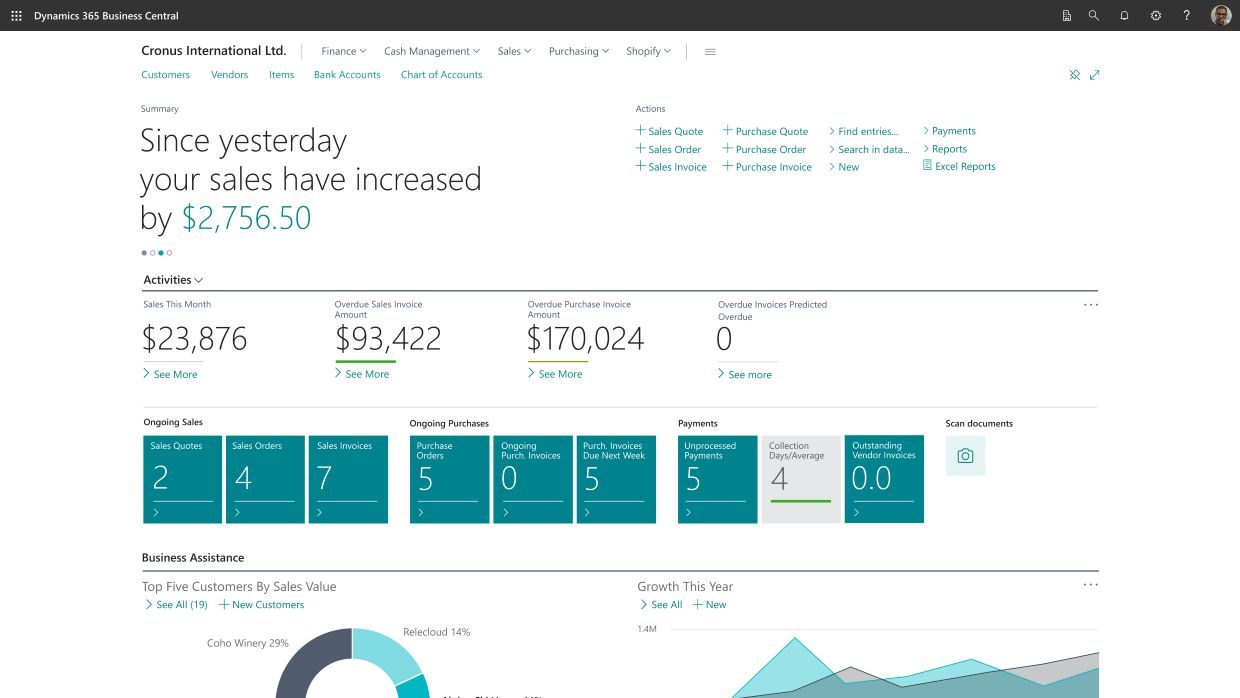
Business Central has a Power BI FactBox that shows Power BI reports directly inside BC pages.
Your finance team can see a live cash-flow chart without leaving the ERP. Sales can check pipeline visuals next to the customer card. It works with reports you have already published to the Power BI service. Think of this as a delivery layer on top of another way to connect Power BI to Business Central, not a standalone method.
5. Connect Power BI to Business Central Through Microsoft Fabric
Microsoft Fabric is Microsoft's newer analytics platform, and it is where BC data pipelines are heading.
Instead of relying only on OData, Fabric pulls BC data through Dataflows Gen2 into a semantic model shared across your organization.
If you want to layer AI on top of your reports, or blend BC data with data from other systems, Fabric is the direction Microsoft is pushing. It pairs naturally with Microsoft 365 Copilot for business when you want natural-language questions on top of your dashboards. Updates are announced on the Microsoft Dynamics 365 blog as they ship.
Sometimes it is easier to see this than read about it. Here is a quick walkthrough that shows the connection process end-to-end:
What Do You Need Before You Connect Power BI to Business Central?
Missing any of the basics will block your setup. Check these five things before you start.
- A Business Central environment (cloud or on-premises). Cloud is easier because the integration comes preconfigured.
- Power BI licensing. A Power BI Pro licence for each user who publishes, refreshes, or views reports, or Fabric capacity as an alternative to per-user licences.
- Permissions in Power BI. Rights to install template apps from AppSource and use shared workspaces.
- A web service access key. Only needed if you are running Business Central on-premises.
- An Entra ID admin. Someone who can register an application in Microsoft Entra ID for embedded reports.
The full prerequisite list sits in Microsoft's Power BI setup documentation. Our overview of Microsoft Dynamics 365 Business Central for Canadian businesses covers the ERP side if you are new to the platform.
Why Should You Connect Power BI to Business Central?
Because your team is losing hours every week rebuilding the same reports in Excel, and half of them do not agree by the time they hit the CFO's inbox.
Real Scenarios: Finance, Inventory, Sales
Take a finance team closing the month. Without Power BI, they export trial balances, dump them into Excel, build pivots, and email a PDF.
Connect Power BI to Business Central, and the same team opens a dashboard, drills into a variance, and answers the CFO in five minutes.
Or picture an inventory manager checking stock levels across three warehouses. A Power BI dashboard tied to real-time BC data flags a shortage before it becomes a stockout, which is ERP in inventory management working the way it should. Add a Power Automate approval flow on top, and the right manager gets pinged the moment reorder is needed.
For small and mid-sized businesses, this kind of visibility used to be enterprise-only. Cloud ERP changed that, and what is cloud ERP at its core is enterprise-grade tools priced for smaller teams. For a Canadian small business specifically, we have broken down what to look for in an ERP for SME so you know what shapes your reporting later.
What About Manufacturers and Distributors?
Manufacturing plants and distributors get some of the biggest returns from connecting Power BI to Business Central. A production supervisor watching real-time throughput can adjust the line before scrap piles up. A distributor watching order velocity by SKU can spot a slow-moving product weeks earlier than a monthly report would.
For manufacturers, this is where the case for the best manufacturing ERP becomes obvious. A good ERP for manufacturer setup pairs with dashboards showing WIP, machine utilization, and cost per run in one view.
For distributors, the same logic applies. Wholesale distribution software tied to Power BI shows warehouse velocity, backorders, and margin by customer without a spreadsheet in sight. If you have ever asked what is ERP in supply chain management, this is it in practice: one view across procurement, warehousing, and shipping.

How Do You Choose the Right Way to Connect Power BI to Business Central?
The best way to connect Power BI to Business Central is the one that matches your team's skill and your reporting goals, not the one that sounds most modern.
Use this quick decision guide:
- You need dashboards fast, and Microsoft's defaults cover most of what you want. Install the AppSource apps. Setup takes hours, not weeks.
- Your reporting is custom, someone knows Power Query, and you have time to model the data properly. Connect Power BI to Business Central through OData. More effort upfront, but it pays back every time a stakeholder asks for a new view.
- You want to blend BC data with a warehouse system, a CRM, or an external database. Look at Fabric. It is built for that kind of unified analytics.
- You want reports to appear where people already work. Embed them inside BC as a delivery layer on top of one of the other methods.
- You are still not sure which method fits your situation. Independent ERP consultants can score the options against your setup before you commit. The fee usually pays for itself in the first stakeholder call it prevents.
Most Canadian SMBs we work with land on a mix: AppSource apps for standard finance and sales dashboards, plus one or two OData-fed custom reports for what makes their business different.
Once your connection is live and you want to go deeper on report design, our guide on Power BI reports in Business Central picks up where this one leaves off.
Get Straight Answers From a B Corp Certified Consultancy
Skip the guesswork. A Gestisoft consultant will map your setup around your goals, not a generic template, before you connect Power BI to Business Central.
 Book a free consultation
What Should Canadian Companies Know Before They Connect Power BI to Business Central?
There is one part of the setup no US or UK article talks about, and it costs Canadian teams the most time to sort out later.
Data Residency, Law 25, and PIPEDA
When you connect Power BI to Business Central, your data can end up in a different Microsoft region than your ERP.
Business Central might sit in a Canadian Azure region (Canada Central in Toronto or Canada East in Québec City), but if your Power BI tenant was provisioned in the US, your reports pull data across the border.
For most Canadian SMBs, that matters under two rules:
- PIPEDA (federal). Requires reasonable safeguards for personal data crossing borders. Details are on the Office of the Privacy Commissioner of Canada site.
- Law 25 (Québec). Stricter, enforceable, with real fines for mishandling personal information.
If you handle health data, financial data, or anything covered by sector regulation, confirm your Power BI tenant region before you connect anything.
If you are still shortlisting ERPs, our guide on Canadian ERP software walks through the residency and vendor questions that matter here before you commit. And if you are in Québec or need a partner who lives Loi 25 daily, a Dynamics 365 Business Central consultant in Montréal is a natural starting point.
Regional Support Across Canada
Canada is a big country, and the right partner is often the one closest to your operation.
Gestisoft has offices in Montreal, Toronto, Ottawa, and Québec City, and we work with clients from coast to coast. If you are on the West Coast, we serve BC clients through a Pacific-Time distributed setup rather than a local office, which our checklist for choosing a Business Central partner in Vancouver explains in detail.
You can also compare notes with other Canadian BC users on the Microsoft Tech Community forums when you connect Power BI to Business Central, which is a solid free resource.
What Mistakes Should You Avoid When You Connect Power BI to Business Central?
Five patterns come up over and over on projects to connect Power BI to Business Central. Watch for them from day one.
1- Licensing Surprises
Teams underestimate how many Power BI Pro licences they need. Every viewer, publisher, and refresher requires one. Based on Microsoft's published pricing, the F64 Fabric capacity that unlocks free viewers only beats per-user Pro at roughly 200 to 350 regular viewers, so most Canadian SMBs stay on Pro. Do the math before you jump tiers.
2- Refresh Limits
Power BI Pro caps you at eight scheduled refreshes per day on a shared dataset. If your finance team needs hourly numbers, you will hit the ceiling fast and need Premium or Fabric.
3- On-Premises Authentication Trip-Ups
If you are still on BC on-prem, you cannot use Windows authentication for Power BI. You need NavUserPassword or Microsoft Entra ID configured on the server first.
4- Skipping AppSource Apps and Going Straight to Custom
If Microsoft's ready-made Finance or Sales apps cover 80% of what you need, use them and customize the last 20%. Building from scratch is a common six-week detour.
5- No Governance Plan
Who can publish reports? Who can share them externally? Which datasets are the source of truth? Answer these before rollout, or you end up with three versions of the sales dashboard and a fight about which one is right. Ongoing ERP support usually catches this early if you have a partner on retainer.
Not Sure If Your ERP Is Ready for Power BI?
Get our Free Self-Evaluation Guide to Your ERP System to check where your setup stands across four factors: finances, reporting, inventory, and production.

-
Power BI is a separate Microsoft product with its own licence. Business Central includes the connection layer, but each user who views, publishes, or refreshes reports needs a Power BI Pro licence (CAD $19 per user per month, paid yearly) or access to Fabric capacity.
Why Choose Gestisoft to Connect Power BI to Business Central?
Because we have helped hundreds of Canadian SMBs connect Power BI to Business Central, and we know where projects usually stall.
Gestisoft was founded in 1997 and has been a Microsoft Solutions Partner since 2004. We are B Corp certified, Great Place to Work Canada certified, and we run a team of bilingual EN and FR consultants out of Montreal, Toronto, Ottawa, and Québec City. Business Central and Power BI are two of the systems we work with every day, from first setup through Fabric migration.
We stay accountable for the outcome, not just the deployment. That means we plan the licensing, size the environment, migrate the data, train your team, and stay with you through every Microsoft release. When you connect Power BI to Business Central with us, the goal is a setup you can grow into, not one you have to rebuild in 18 months.
That accountability shows up in the small moments. Clients often point to how concerns get handled mid-project:
“Always attentive to our needs, the dedicated team never hesitated to take the time to review points generating concern in order to ensure a project that would meet our expectations from A to Z.”
That is the level of care you should expect from any partner you trust with your ERP and reporting stack.
Work With a Team Near You
Local Gestisoft consultants know your market and your data rules. Book a no-pressure conversation before you connect Power BI to Business Central
 Book a free consultation
Liked what you just read? Sharing is caring.

September 21, 2026 by Muhammad Ali Iqbal by Muhammad Ali Iqbal SEO Content Strategist & Copywriter
Driven by a passion for search engine optimization, strategic content, and conversion-focused writing. A copywriter and content strategist who lives for content that ranks, engages, and delivers real business results.

