


Key Takeaways:
- To build a Power App in 2026, you have seven methods spanning no-code, low-code, AI-assisted, and pro-code.
- Power Apps Premium is CAD $27.10 per user/month in Canada, or CAD $16.30 at 2,000+ seats.
- The fastest path is Copilot: describe the app in plain English and get a working prototype in minutes.
- The best Canadian builds extend Business Central, Dynamics 365, or another Microsoft system already in use.
To build a Power App in 2026, you have seven distinct methods to choose from, ranging from a blank canvas to fully AI-scaffolded apps. The right one depends on your data, your team's skill level, and how much design control the finished app actually needs.
That choice matters more than it used to. Until early 2026, building a Power App meant Canvas or Model-Driven. Code Apps went generally available in February, Vibe Apps landed in preview, and Copilot can now scaffold apps from a single sentence. Pick the wrong path and you lose weeks to rework.
This guide ranks all seven for Canadian teams, with real CAD pricing, honest trade-offs, and clear guidance on when to bring in a Microsoft Solutions Partner.
Skip the Wrong Power App Method
A short call with Gestisoft points you to the right method for your use case.
 Book a free consultation
What Are the 7 Ways to Build a Power App in 2026?
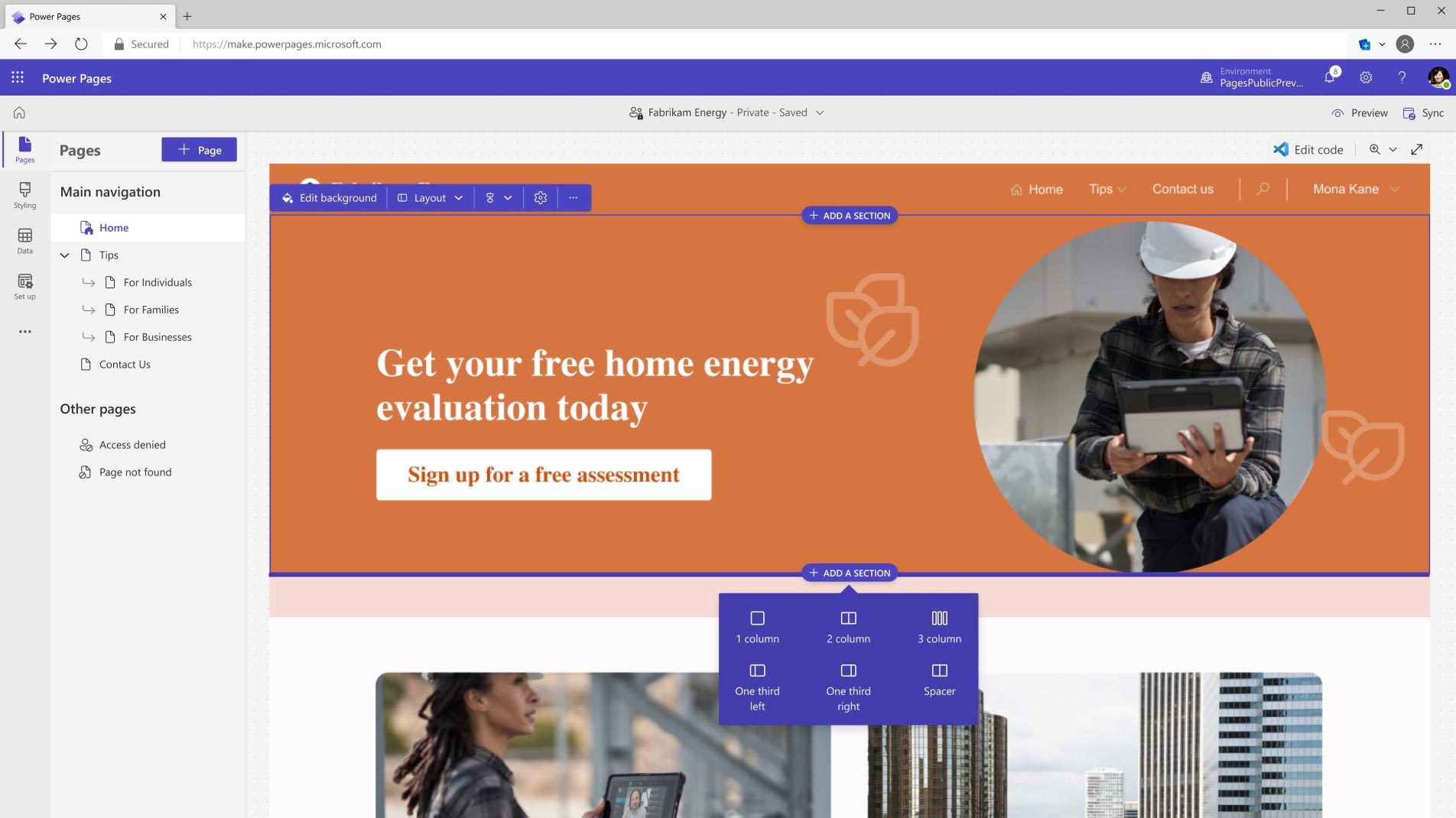
Power Apps in 2026 offers more paths to build an app than most people realize. Some are drag-and-drop, some are prompt-driven, and two are brand new this year. The right one depends on how your data is shaped, how much design control you want, and who is actually going to build it.
The seven methods below are ranked by best fit for a typical Canadian SMB building a first serious Power App, from the most accessible starting point to the most specialized. Method #4 is the one most 2026 tutorials still skip, and often the fastest path to a working prototype for teams starting today.
#1. How Do You Build a Power App From a Blank Canvas?
The blank canvas method is the original way people build a Power App. You open Power Apps Studio, pick a phone or tablet layout, and design every screen yourself. You drop in galleries, forms, buttons, and inputs, then wire them to your data with Excel-style formulas. Full pixel control comes at the cost of full pixel work.
Best for: Teams that need a specific look, unusual navigation, or a highly branded interface where every element must sit exactly where the designer wants it.
Trade-off: You own every design decision. What Copilot or a template gives you in minutes, you build one control at a time.
Time to first working app: A working three-screen app in two to five hours if you are comfortable with drag-and-drop and simple formulas.
#2. How Do You Build a Power App From a Template?
Power Apps ships with dozens of ready-made templates for common scenarios: expense tracking, help desk tickets, site inspections, asset checkout, employee onboarding, and budget approvals. You pick one, connect it to your own data source, and rename fields to match your business. Most of the design and logic is already there.
Best for: A standard use case where reinventing the wheel makes no sense. If a template exists for what you need, start there and customize from a known good state.
Trade-off: Templates lock you into their data model early. Heavy customization sometimes ends up more painful than starting fresh from a blank canvas.
Time to first working app: A running template in 30 to 90 minutes, plus a few hours to adjust fields, permissions, and branding to match your business.
#3. How Do You Build a Power App From Existing Data in Excel or SharePoint?
If your data already lives in Excel, SharePoint, Dataverse, or SQL, Power Apps can auto-generate a three-screen app: a list view, a details view, and an edit form. Point it at your table, click generate, and you have a working CRUD app in about the time it takes to make coffee.
Best for: Line-of-business teams who need a quick mobile front-end for a list they already maintain in Excel or SharePoint.
Trade-off: The auto-generated design is functional but generic. You will spend time later polishing the UI if the app faces external users.
Time to first working app: Five to fifteen minutes for the generated app, plus polish time depending on your standards.
#4. Can You Build a Power App With Copilot Using Natural Language?
This is the method most articles still skip... In 2026, you can build a Power App by describing it in plain English. Type "I need an app to track equipment inspections at three warehouses, with photo upload and a signature field" and Copilot scaffolds the Dataverse tables, screens, forms, and formulas for you. You then refine by conversation with the assistant.
Best for: Anyone who can describe a business process clearly but does not want to touch a formula bar. Also the fastest path to a working prototype.
Trade-off: The generated app is a starting point, not a finished product. Complex logic, tricky permissions, and edge cases still need a human maker's hands.
Time to first working app: Under two minutes for the prompt-to-prototype step. Real refinement time depends on how complex the app gets.
#5. How Do You Build a Power App as a Vibe App (New in 2026)?
Vibe Apps are the newest addition to the Power Apps family in 2026. The pattern is prompt, review, refine, ship, repeat, with AI doing most of the heavy lifting between rounds.
You describe what you want, watch the AI build it, tell it what to change, and iterate until the app is right. It sits between Copilot-generated canvas apps and full pro-code work.
Best for: Teams experimenting with AI-first development and comfortable supervising code they did not write line by line.
Trade-off: The pattern rewards clear thinking. Vague prompts produce vague apps that need heavy rework in the next round.
Time to first working app: Ten to thirty minutes for the first iteration. The real value shows up in the second and third rounds of refinement.
#6. When Should You Build a Power App as a Model-Driven App?
Model-driven apps flip the design process. Instead of starting with the screen, you start with the data model in Dataverse: tables, columns, relationships, and business rules. Power Apps then generates a consistent UI on top of that model, with forms, views, dashboards, and security roles largely handled for you out of the box.
Best for: Data-heavy, process-heavy business systems: a CRM extension, a case management tool, a ticketing system. Structure matters more than pixel-level design.
Trade-off: Less visual freedom than canvas. If your users need a highly custom or heavily branded look, model-driven will feel constraining.
Time to first working app: Half a day to a full day for a first useful app, once your data model in Dataverse is properly designed.
#7. When Should You Build a Power App as a Code App?
Code Apps are the newest pro-code option in Power Apps, generally available in 2026. Developers build a React and TypeScript front-end that runs inside the Power Platform, calls Dataverse, and can invoke Copilot Studio agents. It is the closest Power Apps gets to a bespoke custom application while keeping the platform's data and security layer intact.
Best for: Complex customer-facing experiences or heavily branded internal apps where canvas and model-driven both feel too constrained.
Trade-off: You need real developers. Total cost of ownership is the highest of the seven methods, but so is the differentiation potential.
Time to first working app: A few days to a few weeks, depending on scope and how much the team leans on AI code assistants.
Here's a quick Microsoft overview of what Power Apps looks like in practice...
What Do You Need Before You Build a Power App?
The tooling is free to open. What decides whether your app actually ships in production is what sits underneath it: the license you buy, the data it connects to, and the connectors it needs.
How Much Does It Cost to Build a Power App in Canada?
Building an app is technically free. Running it is where the bill starts.
Microsoft's Canadian pricing page currently lists three main options for Power Apps: a free Developer Plan for non-production use, Power Apps Premium at CAD $27.10 per user per month paid yearly, and Power Apps Premium at CAD $16.30 per user per month for organizations buying at least 2,000 seats.
Microsoft also offers a Pay-As-You-Go option for variable or seasonal usage, billed through Azure. Pricing for that model is not published on the Canadian page, so contact Microsoft or a Partner like Gestisoft for a quote if usage will be spiky.
Beyond the base license, the biggest add-on cost most Canadian teams hit is the Dataverse Database Capacity add-on at CAD $54.30 per gigabyte per month, plus premium connectors and any Power Automate process licenses your background flows need.
Which Data Sources and Connectors Should You Choose?
For serious business apps, Dataverse is the default. It is Microsoft's own relational store, comes with role-based security, and scales cleanly with the rest of the Microsoft ecosystem.
For lighter use cases, SharePoint lists and Excel files still work well and are covered by standard connectors.
Premium connectors, which include SQL Server, Salesforce, and Business Central, require the Premium license. This is the pricing surprise most first-time makers hit. If your app reads or writes Business Central data, every end user needs Power Apps Premium, not just their Microsoft 365 seat.
Standard connectors like SharePoint, OneDrive, Outlook, and Teams are included in most Microsoft 365 plans. If you can build a Power App on those alone, you avoid the Premium surcharge entirely.
For teams that also want to visualize the app's data alongside other reports, Power BI turns those same data sources into interactive dashboards for faster, better decisions. If you want the full primer, see our overview of what Power BI is and how it works.
Get Your Power App Roadmap in One Call
Talk to a Gestisoft consultant about which method fits your data and team.
 Book a free consultation
What Are the Most Common Mistakes When You Build a Power App?
Two mistakes derail more Power Apps projects than everything else combined. Both are avoidable if you know what to watch for on day one.
Why Do Most First-Time Makers Skip Governance When They Build a Power App?
Governance gets skipped because nothing forces the question. The default environment sits there when you sign in, and your first app drops into it. Six months later, that environment is a graveyard of half-finished apps, orphaned flows from employees who left, and connections pointing at accounts nobody remembers creating.
Data loss prevention policies, dedicated environments per business unit, and basic ALM practice, meaning development, test, and production environments, cost almost nothing to set up on day one. Retrofit them a year in, after an app has grown roots and dependencies, and you are looking at a serious cleanup project that often costs more than the original build.
For example, a 150-person distribution team can easily end up with 40+ apps sitting in the default environment after a year, a third of them built by employees who have since left and no clear owner for the flows underneath. Cleanup then takes a full quarter, usually while new app requests keep coming in from the same business.
Are You Underestimating What It Really Costs to Run the App?
Premium connector surprises catch most teams. A demo works fine on Excel and SharePoint, then the finance team asks the app to talk to Business Central, and every user suddenly needs a Premium license. Budget the Premium tier from the start if your data lives in a Microsoft business application.
Dataverse capacity also creeps quietly. Every table, log, and attached file counts against your storage entitlement. Add a background Power Automate flow with a process license, then layer in Copilot across your Microsoft apps, and the monthly cost of an app most people assumed was free can quietly climb into four figures.
Take a Quebec manufacturer that builds a warehouse app on SharePoint. It works well in pilot with a small team. Then finance asks the same app to pull live inventory from Business Central, and every warehouse user suddenly needs a Premium license, turning a project the team assumed was free into a five-figure yearly line item.
Should You Build a Power App Yourself or Hire a Microsoft Partner?
The DIY route works genuinely well for a narrower band of use cases than most articles suggest. The trick is knowing which side of the line you sit on before you invest three months in a build.
DIY tends to work when the app is small, the data already lives in SharePoint or Excel, one person owns it end to end, and no critical business process is riding on it working perfectly on day one. A team lead who spends a Saturday building a leave request form for their department is the archetype here.
A Microsoft Solutions Partner like Gestisoft earns their fee when the app touches Business Central or Dynamics 365 data, when Law 25 or PIPEDA obligations enter the picture, when multiple departments need to share the app, or when the app is meant to run for years and outlive the person who built it.
On the AI side of any Power App build, a Microsoft Copilot consultant handles the environment review, governance, and rollout planning that keeps Copilot from ending up as shelfware. For the full breakdown of what that role covers, read our guide to what a Microsoft Copilot consultant actually does.
-
To build a Power App means creating a custom business application on Microsoft's Power Platform without writing traditional code from scratch. You use a visual designer, formulas, or AI prompts to define screens and logic, then connect the app to your business data through hundreds of built-in connectors.
Why Do Canadian Teams Choose Gestisoft to Build a Power App?
Gestisoft has been a Microsoft Partner for nearly three decades, with offices in Montréal, Toronto, Ottawa, and Québec, and a bilingual team that works in both English and French. That combination matters when you are building on Power Apps in Canada and dealing with Law 25, PIPEDA, and mixed-language user bases.
Most Canadian SMBs do not build a Power App in isolation. They build it to extend a Microsoft business system already running in production: Business Central for finance and operations, Dynamics 365 for sales or service, or Copilot for productivity. Gestisoft implements all of them, so the team that designs your app also knows how the data behind it flows.
That end-to-end view is what separates a Power App that ships and lasts from one that stalls in a proof-of-concept forever. Licensing gets sorted correctly the first time. Data lives where it should. Governance is in place before the app grows roots that would be expensive to untangle.
Here’s what one of our clients said after working with us…
“Always attentive to our needs, the dedicated team never hesitated to take the time to review points generating concern in order to ensure a project that would meet our expectations from A to Z.”
If you are weighing where to start, a short conversation is usually the fastest way to figure out which of the seven methods actually fits your situation.
Ship Your First Power App Faster
A Gestisoft consultant reviews your use case and outlines what to build first.
 Book a free consultation
Liked what you just read? Sharing is caring.

August 19, 2026 by Muhammad Ali Iqbal by Muhammad Ali Iqbal SEO Content Strategist & Copywriter
Driven by a passion for search engine optimization, strategic content, and conversion-focused writing. A copywriter and content strategist who lives for content that ranks, engages, and delivers real business results.
