

Key Takeaways:
- A NAV to Business Central migration is the process of moving your Dynamics NAV on-premises system to Microsoft Dynamics 365 Business Central, either as a staged upgrade or a clean reimplementation.
- Most projects run 4 to 8 months from assessment to go-live, depending on customization depth and history you carry forward.
- Microsoft's supported path requires a bridge stop at Business Central version 14 on-premises before the cloud migration tool can run.
- C/AL customizations do not run in Business Central online. They must be rebuilt as AL extensions, replaced with AppSource apps, or retired.
A NAV to Business Central migration is the process of moving your Dynamics NAV on-premises system to Microsoft Dynamics 365 Business Central, either through a staged technical upgrade or a clean reimplementation. For most Canadian SMBs, the decision comes down to how much of your NAV setup is worth carrying forward, and how much is better left behind.
This guide walks through the seven-step process, when to upgrade versus reimplement, realistic timelines and cost drivers for Canadian businesses, and the mistakes that quietly derail projects before go-live.
Move Off NAV With Confidence
Get a clear read on your customizations, data, and the right path forward for your business.
 Free discovery call
What Are the 7 Steps in a NAV to Business Central Migration?
Every NAV to Business Central migration follows the same core path. The details shift with your version, customizations, and industry, but the seven steps below hold.
1. Run a Customization and Add-On Inventory
Start with a full audit of every modified object, third-party add-on, integration, and custom report in your NAV environment.
In older NAV systems, the Modified flag can be overwritten. A full comparison against the base NAV version is the only way to know the real scope.
This inventory drives every scoping and cost decision in your NAV to Business Central migration.
Consider a distributor on NAV 2016 with 200-plus custom objects accumulated over eight years. A proper inventory usually finds that a third are duplicates from abandoned change orders, a third are covered by standard Business Central features today, and only the last third genuinely needs to move forward. That single exercise can cut project scope by weeks.
2. Choose Your NAV to Business Central Migration Path
This is where the fork happens. A direct upgrade preserves history and rebuilt customizations. A reimplementation leaves the old code behind and configures Business Central fresh.
For example, a services firm on NAV 2018 with clean, extension-based customizations often qualifies for a direct upgrade. A manufacturer on NAV 2013 with 60-plus base-code modifications almost always lands on reimplementation as the sane path.
There is a full decision breakdown further down, but the choice you make here shapes every step after it.
3. Upgrade to Business Central Version 14 On-Premises (The Bridge Step)
Microsoft's supported path requires you to first upgrade to Business Central version 14 on-premises, also called the Spring 2019 Release.
Version 14 is the last release that supported both the older C/AL code and the modern AL extension model. That makes it the technical bridge between legacy NAV and today's cloud. There is no shortcut here for a direct upgrade.
For example, a team upgrading from NAV 2017 hits v14 and discovers their old barcode-printing add-on has no v14-compatible version. They have to make the replace-or-retire call there, not in the cloud step, because the add-on's data structures block the migration tool downstream. Better to face it at the bridge than during live cutover.
4. Convert C/AL Customizations to AL Extensions
Business Central online locks the base application. Any customization you want to keep must be rebuilt as an AL extension.
Some legacy code is already covered by standard Business Central features. Some belong in AppSource replacements. Some genuinely needs a rewrite. This step is often the longest single workstream in the project.
Take a common one, a custom Canadian sales tax calculation for GST, HST, and QST. In older NAV builds, it usually lived as C/AL code that had to be maintained by hand every time the rules changed. Business Central now handles Canadian tax jurisdictions natively, so that entire blocks of custom code can retire.
5. Run the Microsoft Cloud Migration Tool
Once your source environment is on a compatible Business Central on-premises version, Microsoft's cloud migration tool takes over. It replicates your standard data into Business Central online: master data, general ledger entries, open documents, and setup tables.
However, it does not move C/AL objects, third-party add-on data without a cloud equivalent, or custom reports. Those need separate handling planned in steps 1 and 4.
Imagine a distributor going live on Monday morning. The cloud migration tool has brought their GL, customers, and open POs across cleanly over the weekend. Their old warehouse pick-list report, though, is missing on day one and needs its own rebuild plan.
6. Validate Data, Reconcile Balances, and Train Users
Run at least one full trial migration. Have finance reconcile subledgers to the general ledger. Have operations verify open orders and inventory. Have users test in the actual role centers they will use.
Role-based training happens here too, not the week before go-live. A strong ERP data migration strategy builds validation into every dry run rather than treating it as a final gate.
Picture finance reconciling trial-migration balances against last month's NAV close, subledger by subledger, while warehouse users get their first hands-on time in the new role centers. A misapplied foreign-currency rounding rule surfaces on the AR side. A pick workflow nobody thought to test in design surfaces on the ops side. Both get fixed before go-live, not after.
7. Cut Over, Go Live, and Support the First Close
Final data sync, freeze NAV, and switch. Plan two to four weeks of hypercare while users hit real workflows for the first time.
Keep the NAV database in a backup state for 12 to 24 months for historical queries and audit needs. The first month-end close is the real proof point.
Here is what a typical cutover looks like for a mid-size distributor: freeze NAV Friday evening, run the final sync Saturday, controller signs off Sunday, users live Monday morning. Two weeks of hypercare follow, and the month-end close two or three weeks later is what tells you the migration actually worked, or where it still needs cleanup.
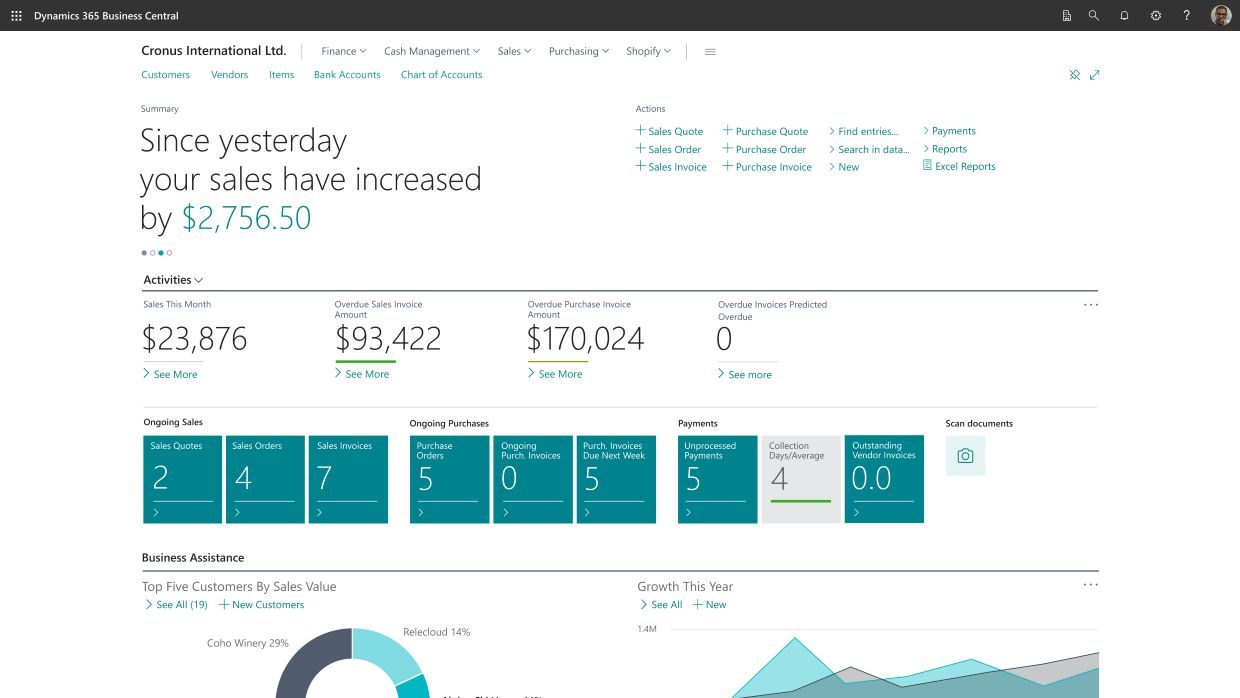
Most NAV users have never seen a modern Business Central role center in production. This short interface tour shows what your team will land on after cutover.
Why Should You Start Your NAV to Business Central Migration Now?
Waiting has real costs, and they are not just about support timelines. Every year on NAV widens the gap between what your ERP can do and what modern Business Central offers.
When Does Dynamics NAV Support Actually End?
NAV 2018 was the final release, and mainstream support ended in January 2023. Extended support runs until January 11, 2028. That sounds far away until you factor in scoping, extension work, testing, and partner capacity.
Most serious NAV to Business Central migration projects need 6 to 12 months from kickoff to go-live. That puts realistic planning windows in front of you now, not in 2027.
What Are You Losing by Delaying Your NAV to Business Central Migration?
Every quarter you stay on NAV, you sit out another wave of Microsoft's release cadence. NAV has no Copilot, no built-in AI, and no path to receive the assistive or agent-based capabilities Microsoft is shipping to Business Central.
Bank reconciliation matching, sales order agents, cash flow suggestions, and analysis mode all live on the cloud side.
If your team is curious what those features look like day to day, our guide to Chat with Copilot in Business Central walks through the actual use with examples.
How Does Waiting Increase the Cost and Risk of Your Project?
Two forces push the price of delay up. First, senior NAV consulting talent is shrinking as partners shift resources to cloud projects, which tighten capacity as the 2028 deadline nears.
Second, every year of new customizations, undocumented workarounds, and one-off integrations added to your NAV environment adds scope to the eventual project. The cheapest and lowest-risk NAV to Business Central migration is almost always the one you start earlier.
Stop Losing Time to a System Microsoft Is Winding Down
Talk to a Canadian Business Central specialist who has migrated NAV environments like yours.
 Book a free consultation
Which NAV to Business Central Migration Path Is Right for You?
There are two supported paths for your NAV to Business Central migration, and one of them wins more often than partners like to admit.
When a Direct Upgrade Makes Sense (The Narrow Case)
A direct upgrade only fits a narrow scenario…
- You need to be on a recent NAV version.
- Your customizations already need to sit in extensions rather than base code.
- Your business processes should not have shifted much since NAV was implemented.
- You also need to be comfortable carrying those processes forward rather than redesigning around cloud capabilities.
If all four are true, an upgrade preserves the most history with the fewest surprises.
Why Most Canadian SMBs Choose Reimplementation
Most NAV environments in the wild are 8 to 15 years old. Customizations were made in base code because that was normal practice at the time.
Business processes have shifted more than anyone realizes. The workarounds that made sense in 2014 rarely make sense in a cloud ERP that ships new capabilities every six months.
Reimplementation lets you configure Business Central fresh, adopt standard functionality where it now covers old gaps, and bring only the data that still earns its place.
The tradeoff: not all posted history moves, but many businesses find 2 to 3 years plus an archived NAV database is enough.
How Long Does a NAV to Business Central Migration Take?
Real projects rarely match the neat timelines in vendor decks. Here is what actually shapes the calendar.
Most NAV to Business Central migration projects run 4 to 8 months from assessment to go-live.
Light customization, clean data, and a single company sit at the low end. Heavy customization, multiple add-ons, complex integrations, or multi-entity structures at the high end.
The phases are consistent: assessment and scoping, design and mapping, build and configuration, data migration and testing, and cutover with hypercare.
Extension development is usually the longest single workstream in a NAV to Business Central migration, because it is the phase most affected by how much of your NAV code you actually want to preserve.
If you want a broader view of what makes any ERP project succeed or slip, our top 5 ERP implementation challenges breakdown covers the patterns that show up across almost every implementation, not just NAV migrations.
How Much Does a NAV to Business Central Migration Cost in Canada?
Anyone quoting you a flat NAV to Business Central migration price without seeing your environment is guessing. The five drivers below explain why.
The 5 Cost Drivers That Actually Move Your Budget
Every NAV to Business Central migration budget bends around the same five variables. Knowing which of them applies most to your environment is half the scoping work.
- Customization volume. The biggest lever. Every modified object needs a decision: rebuild, replace, or retire.
- Add-on replacement. Third-party NAV modules rarely have one-to-one cloud equivalents. Each one needs an AppSource match or a custom rebuild.
- History depth. Bringing 15 years of posted transactions is not free in storage or validation time. Most teams land on 2 to 3 years live.
- Integration rebuilds. Every system that talks to NAV needs a Business Central-compatible connection. EDI, shipping, payroll, and CRM sync all count.
- Target functionality. Reimplementing to unlock modern features requires configuration effort beyond simply moving data.
What Ongoing Subscription and Licensing Costs Should You Plan For?
Business Central online is licensed per user per month, with Essentials and Premium tiers priced in your local currency through Microsoft's cloud solution provider channel. Confirm current per-user pricing directly on the Microsoft site or with your partner, since figures change.
Storage beyond the base allotment can add cost if you migrate large historical volumes. That is why the "what to migrate" conversation in step 1 matters to the finance line too.
Working with an experienced ERP consulting partner is the fastest way to translate these variables into a realistic NAV to Business Central migration budget.
The Real Case for Moving to a Cloud ERP
See the five reasons Canadian SMBs are choosing cloud-first ERPs like Business Central, and where the real value shows up.

What Are the Biggest Mistakes in a NAV to Business Central Migration?
The failure patterns we see are consistent. Avoiding them costs less than fixing them.
1. Treating It as an IT-Only Project
Data decisions belong to finance and operations, not just IT.
The people who close the books and ship the orders know which fields matter, which reports get used, and which posted history actually gets pulled. Cut them out and you will be reworking mappings after go-live.
Take IT deciding to migrate only "active" customer records without asking sales. Come October, the seasonal buyers who only order once a year turn out to have been left behind. Now those accounts have to be rebuilt from scratch, one by one, in the middle of a busy quarter.
2. Skipping the Customization Inventory
You cannot scope, budget, or time a NAV to Business Central migration without knowing every modified object, add-on, and integration.
In older NAV environments, the Modified flag can be overwritten. A real base-version comparison is the only trustworthy inventory.
For instance, a team relies on the Modified flag and skips the base-version comparison. Halfway through the AL rebuild, trial balances stop reconciling because of an old tweak to the item costing routine, added years ago to handle a rebate scheme. Fixing it means rewriting the mapping mid-project and pushing go-live by a month.
3. Migrating 15 Years of History "Just in Case"
Every year of posted history you migrate adds validation cycles, storage cost, and clutter. Most teams end up needing 2 to 3 years live and the rest archived. Making that call early saves weeks of downstream work.
Picture a distributor insisting on migrating 12 years of posted invoices "for audit." Six months in, nobody has queried anything older than three years, but storage costs, testing cycles, and go-live delays have already added noticeably to the total bill.
4. Recreating Old Workarounds One-for-One
Business Central now handles many processes that required custom code in NAV. Before you pay to rebuild an old customization, check whether standard functionality now covers it. This is one of the biggest wins reimplementation projects deliver.
An example of this is a team pays to rebuild an old NAV custom approval workflow for large POs into fresh AL code. Later, they find out Business Central already ships native approval workflows that do the same job through a simple setup screen. Weeks of dev time, wasted.
5. Underestimating Parallel Testing
Plan at least one full trial migration with real business users validating balances, open orders, and reports before cutover. Trial migrations catch the mapping errors that spreadsheet reviews miss. Teams that skip this meet those errors during the first close, which is a terrible time to find them.
For example, a mis-mapped currency rounding rule can slip past spreadsheet reviews and only surface at the first close. Two weeks of tracing across subsidiaries follow, when a proper dry run would have caught it in an afternoon.
6. Waiting Until the Last Quarter of Support
Starting late means racing partner capacity, tightening budgets, and cornering yourself into scope compromises. Support deadlines do not move.
The earliest starters get the best consultants, the calmest project, and the most flexibility on how their NAV to Business Central migration actually runs.
In practice, a team that starts scoping in Q4 2027 finds their preferred partner already booked six months out. Choices shrink to whoever still has capacity, timelines tighten, and pricing shifts in the wrong direction the closer 2028 gets.

-
Not in a single hop. Microsoft's supported NAV to Business Central migration path has three stages: first upgrade to Business Central version 14 on-premises, then to a current supported on-premises version, then run the cloud migration tool to move data into Business Central online. A reimplementation can shortcut some of that by loading essential data into a fresh online tenant.
Why Gestisoft for Your NAV to Business Central Migration
Not every partner has spent years inside heavily customized NAV environments. Fewer still have delivered the full path into Business Central for Canadian SMBs.
Gestisoft has been a Microsoft partner since 2004, and Business Central has been in our practice since it launched. We have delivered NAV to Business Central migration projects across manufacturing, distribution, professional services, and fashion, in both English and French Canadian environments.
Every engagement starts with a customization inventory, a data audit, and a candid recommendation on whether an upgrade or reimplementation fits your business.
Our AL developers and finance-side consultants work together, so extension work and number validation happen side by side rather than in silos. We are also a B Corp and Great Place to Work certified, with offices in Montréal, Toronto, Ottawa, and Québec.
When the conversation about AI in ERP becomes real for your team, we help you turn on Copilot, agents, and analysis mode without turning your NAV to Business Central migration into a five-year project.
“As a customer since 2015, I would like to highlight the quality of support and expertise provided by Gestisoft for our Business Central application. Their competence is notable and has greatly contributed to the success of my business. I highly recommend them as a service provider for Business Central”
If Kim's kind of long-term outcome is what you want on the other side of your project, the next step is a straightforward conversation.
Get a Straight Answer on Your Best Path Forward
Book a working session with a senior consultant who has scoped dozens of Canadian NAV projects.
 Book a free consultation
Liked what you just read? Sharing is caring.

August 17, 2026 by Muhammad Ali Iqbal by Muhammad Ali Iqbal SEO Content Strategist & Copywriter
Driven by a passion for search engine optimization, strategic content, and conversion-focused writing. A copywriter and content strategist who lives for content that ranks, engages, and delivers real business results.

