

Navigating an ERP systemcan often be time-consuming. From looking up invoices to understanding field names, employees frequently spend minutes clicking through menus or searching for documentation. With Chat with Copilot in Business Central, this process changes dramatically.
This new feature allows users to interact with Business Central using natural language, asking questions, requesting data, and receiving step-by-step guidance without leaving their workflow. It is an intelligent assistant built directly into the ERP, helping businesses save time, simplify training, and improve decision-making.
In this article, we will explain what Chat with Copilot in Business Central is, explore its core features, walk through practical use cases, and provide best practices for adoption. You’ll also find a video demonstration showing Chat with Copilot in action.
What is Chat with Copilot in Business Central?
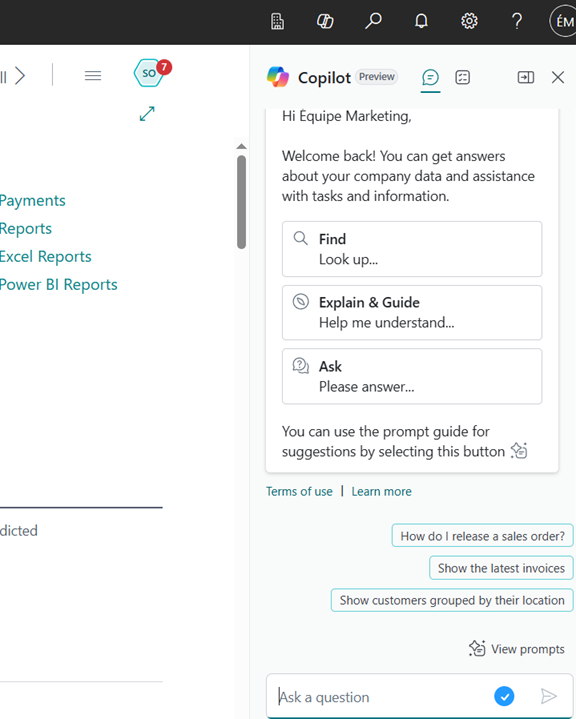
Chat with Copilot in Business Central is an AI-powered assistant designed to make data access and ERP navigation easier. Instead of manually searching through pages and reports, users can type a question or command into the chat pane and receive instant responses.
This chat-based functionality supports three main categories of interaction:
- Find → Retrieve and open records such as customers, vendors, sales orders, or invoices.
- Explain and Guide → Get step-by-step instructions on how to perform a process or understand a concept.
- Ask → Pose general questions related to data, navigation, or functionality.
Unlike traditional help articles, Chat with Copilot uses your company’s actual data (within the limits of your permissions). For example, you could ask:
- “Show me delayed orders from last quarter.”
- “Help me understand dimensions.”
- “How do I close a client invoice?”
The answers are contextual, interactive, and often include links to official Microsoft Learn documentation so that you can verify or explore further.

Key capabilities of Chat with Copilot in Business Central
Let’s break down the three core prompt guides that shape how Chat with Copilot in Business Central works:
1. Find
This option allows you to quickly locate business data without navigating multiple menus. For example:
- “Show me the latest sales order for [Company Name].”
- “Find customer ledger entries from last month.”
- “Group my vendors by country.”
Copilot will fetch the records, present them in the chat pane, and even generate an analysis tab when aggregation is requested.
2. Explain and Guide
This is particularly helpful for users who are still learning Business Central. You can ask Copilot to explain concepts or guide you through processes, such as:
- “Help me understand how to apply invoice discounts.”
- “Explain what the Quantity field means.”
- “How do I post a sales order?”
Copilot answers directly in the chat, referencing official documentation.
3. Ask
This mode is open-ended and allows for flexible queries. For instance:
- “What can Copilot do on this page?”
- “Summarize my invoices by customer and due date.”
Ask mode combines both data access and guidance, adapting to your phrasing and intent.
Video demonstration: Chat with Copilot in action
To better understand how Chat with Copilot in Business Central works, watch our short video demonstration below.
This video highlights the real-world power of Chat with Copilot: faster answers, simplified workflows, and guided assistance, all without leaving the application.
Advanced ways to use Chat with Copilot in Business Central
While the basics of Chat with Copilot in Business Central are straightforward, its advanced features unlock even more value:
1. Analysis tabs
When you ask questions related to data aggregation (like grouping or summarizing), Copilot generates an analysis tab. For example:
- “Summarize invoices by customer and due date.”
- “Group customers by country and show total sales.”
These results appear in a structured layout, enabling further exploration and filtering.
2. Field explanations
If you are unsure about the meaning of a specific field (e.g., “Quantity” in an item ledger entry), you can use the Ask Copilot option directly from the tooltip. Copilot then explains the field’s purpose and references official sources.
3. Prebuilt prompt guides
For new users, the View Prompts option displays a set of predefined questions under the three categories (Find, Explain and Guide, Ask). These guides help users formulate better questions and discover Chat’s capabilities.

4. Extending queries dynamically
You can refine existing queries by asking Copilot to add new criteria. For example:
- Initial prompt: “Summarize invoices by customer.”
- Follow-up: “Add canceled orders.” Copilot updates the analysis in real time.
Practical benefits for businesses using Chat with Copilot in Business Central
Using Chat with Copilot in Business Central delivers measurable benefits:
- Time savings → Employees access records and insights instantly, instead of navigating menus.
- Improved decision-making → Analysis tabs provide structured overviews for better visibility.
- Simplified onboarding → New users can rely on Copilot for explanations and task guidance.
- Increased productivity → Routine queries become conversational, freeing teams to focus on higher-value tasks.
- Contextual learning → Users learn Business Central processes directly in the flow of work.
These benefits make Copilot not just a tool for convenience, but a driver of digital adoption.
How much can you save with Business Central?
Download your free ROI Excel calculator to discover how much savings you can make by implementing Business Central today.

Limitations and best practices of Chat with Copilot in Business Central
As with any AI-powered feature, there are current limitations to be aware of:
- Chat is only available on the Business Central web client.
- While available globally, it is validated in English only (other languages may vary in accuracy).
- Copilot sometimes provides incomplete or incorrect answers — verification is recommended.
- Chat displays a maximum of three record tiles at a time.
- Some mathematical calculations (like averages across fields) are not yet supported.
To get the best results, follow these best practices:
- Ask clear and specific questions (e.g., “Show invoices for [Company Name] in March” instead of “Show invoices”).
- Keep prompts concise. Avoid combining multiple questions in one sentence.
- Use keywords from Business Central (customers, sales orders, dimensions).
- Refine queries with follow-up questions instead of starting over.
- Clear chat history when switching to a new topic for better accuracy.
Book a free consultation with our ERP experts now
Contact us to learn more about Chat with Copilot in Business Central and more Microsoft solutions, tailored for your business.
 Free discovery call
Security, privacy, and compliance considerations
Since Chat with Copilot in Business Central interacts with company data, Microsoft has built strict compliance measures:
- Permission-based access → Copilot only shows data that the logged-in user is authorized to view.
- Exclusions → Secret fields (like passwords) and masked data are never accessible.
- Data residency → Prompts are processed through Azure OpenAI Service, respecting regional compliance (e.g., EU data remains within EU boundaries).
- Transparency → Copilot often provides links to the sources of its answers so users can verify information.
Businesses adopting Copilot can feel confident that their security and privacy standards remain intact while enabling AI-driven assistance.
Why work with Gestisoft to implement Business Central Copilot?
At Gestisoft, we specialize in helping businesses unlock the full potential of Microsoft Dynamics 365 Business Central. With the introduction of Copilot features like Chat, organizations have a unique opportunity to simplify workflows, empower employees, and make better use of their ERP.
Our team supports you in:
- Enabling and configuring Chat with Copilot.
- Training your staff to adopt AI features effectively.
- Customizing Business Central to fit your processes.
- Ensuring compliance and security requirements are met.
If you are ready to explore how Chat with Copilot in Business Central can transform your operations, reach out to Gestisoft today for a personalized demo.
-
It is an AI-powered chat assistant that helps you find data, explain processes, and guide tasks in Business Central using natural language.
Liked what you just read? Sharing is caring.

August 14, 2025 by Kooldeep Sahye by Kooldeep Sahye Marketing Specialist
Fuelled by a passion for everything that has to do with search engine optimization, keywords and optimization of content. And an avid copywriter who thrives on storytelling and impactful content.