
Resource scheduling optimization is the difference between “we have enough technicians” and “we can actually deliver on time, with the right skills, and without burning margins on travel and rework.” When scheduling is done manually—or even semi-automatically—dispatchers are forced to make trade-offs under pressure: prioritize the urgent job, try to respect SLAs, keep technicians busy, and still avoid zigzag routes across a territory.
In Microsoft Dynamics 365 Field Service, resource scheduling optimization is most commonly associated with Resource Scheduling Optimization (RSO): an add-in that can schedule multiple jobs at once and optimize assignments based on your constraints and objectives, helping you maximize resource utilization and minimize travel time.
This guide explains what resource scheduling optimization means in the Field Service context, how RSO works (goals, scopes, runs), how to implement it without common pitfalls, and how to measure success so it stays optimized over time.
What is resource scheduling optimization?
Resource scheduling optimization is the practice of assigning service work to the best available resources—people, crews, facilities, or equipment—while meeting operational constraints (availability, skills, territories, time windows) and optimizing business objectives (travel, utilization, priority, customer commitments).
In field service operations, resource scheduling optimization typically aims to:
- Put the right technician on the right job (skills, certifications, role)
- Arrive within the promised time window / SLA
- Build routes that reduce dead miles and wasted windshield time
- Increase technician utilization without overloading capacity
- Scale scheduling as work order volume grows
Dynamics 365 Field Service supports scheduling through the schedule board and schedule assistant, and it extends into full resource scheduling optimization with the RSO add-in, which schedules in bulk and optimizes routing and utilization.
Ready to optimize your resource scheduling process for field service intervention?
Contact us for a free consultation and to learn more about Dynamics 365 Field Service.
 Free discovery call
Resource scheduling optimization in Dynamics 365 Field Service: what RSO actually does?
The Resource Scheduling Optimization add-in for Dynamics 365 Field Service automatically schedules jobs to resources that are best equipped to complete them. It can optimize assignments not only for work orders, but also for other “jobs” on the platform (for example, cases).
Two practical points matter for decision-makers:
- RSO is designed to schedule multiple jobs at once, while tools like the schedule assistant are generally aimed at helping schedule a single job.
- RSO is a separately licensed add-in (it isn’t automatically included by default in Field Service licensing).
What RSO optimizes?
When you turn on resource scheduling optimization with RSO, the engine evaluates constraints such as:
- Resource working hours and calendars
- Required roles, skills, and characteristics
- Work order time windows and priority
- Territories and scope boundaries
- Travel time (based on locations)
Microsoft summarizes the outcome clearly: the add-in schedules jobs to best-fit resources, can schedule multiple jobs at once, and is designed to maximize resource use while minimizing travel time.
What RSO prioritizes?
Constraints describe what must be true. Objectives describe what “best” means when multiple schedules are possible. Typical objectives include:
- Minimize travel time and distance
- Maximize utilization and working hours
- Respect high-priority work first
- Align skills to job requirements
These objectives are operationalized through optimization goals (explained below), which determine how the optimizer scores and ranks potential schedules.

Resource scheduling optimization vs schedule assistant vs manual scheduling
Dynamics 365 Field Service supports multiple ways to schedule, and the best approach often blends them depending on volume and complexity.
Manual scheduling (schedule board-driven)
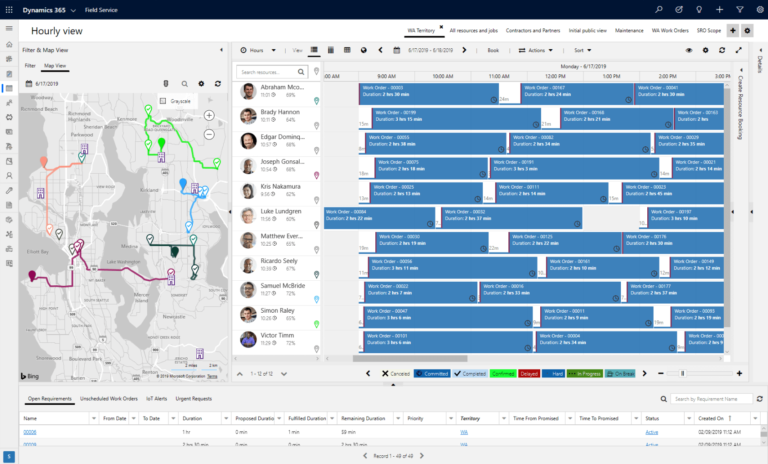
Manual scheduling is dispatcher-led: you visually place bookings, adjust routes, and respond to exceptions in real time. The schedule board is the “command center,” and many organizations rely on it heavily even after implementing optimization.
Use manual scheduling when:
- Job volume is low to moderate
- Many jobs are exception-based or require human judgment
- You need tight dispatcher control for VIP accounts or complex constraints
Schedule assistant (semi-automated matching)
The schedule assistant helps dispatchers match jobs with the right resources using recommendations (availability and fit), while keeping human control over the final choice.
Use the schedule assistant when:
- You’re scheduling one job at a time
- You want “best match” suggestions but still want dispatchers to decide
- You’re in a transition phase, standardizing data and processes
RSO (true resource scheduling optimization at scale)
RSO is best when you need resource scheduling optimization for many requirements at once—daily planning, territory-based routing, preventive maintenance batches, or large technician pools. Microsoft explicitly contrasts it with schedule board/schedule assistant by highlighting that RSO can schedule multiple jobs at once.
Use RSO when:
- You schedule high volumes of work orders daily or weekly
- Travel time and routing efficiency meaningfully impact margin
- Skill matching and SLA compliance are hard to maintain manually
- You need to scale without growing dispatcher headcount at the same pace
How resource scheduling optimization works in RSO?
RSO becomes predictable—and controllable—when you understand three building blocks: requirements, goals, and scopes.
1) Requirements: what needs to be scheduled
In Field Service, scheduling targets are typically “requirements” derived from work orders (and sometimes other entities you enable for scheduling). The optimizer is deciding: Which requirements should be booked to which resources, and in what sequence?
2) Optimization goals: how RSO defines “best”
An optimization goal is the scoring model. It defines which outcomes matter most: travel time, utilization, priority, and other goal components.
In Microsoft’s quickstart guidance, you configure RSO by setting up a scope, goal, and schedule to assign work orders to resources. That’s a good mental model: the goal is how RSO judges the schedule it creates.
Practical guidance: start simple. If you over-weight too many competing objectives early, it becomes harder to predict results—and easier to end up with “no feasible schedule.”
3) Optimization scopes: what RSO is allowed to touch
A scope defines the boundaries of an optimization run: which requirements and which resources the optimizer may consider.
Good scopes are narrow enough to be operationally meaningful (for example: one territory, one day, one team) but broad enough to give the optimizer choices.
Common scope patterns:
- Territory scope (optimize within a geographic area)
- Same-day scope (optimize today’s backlog and new jobs)
- Emergency scope (optimize high-priority work with minimal disruption)
4) Optimization runs: how dispatchers operationalize results
RSO generates an optimized schedule, and then dispatchers validate it on the schedule board (where they can still manage exceptions). The schedule board documentation notes that some features are available specifically to organizations using the RSO add-in, reinforcing how RSO augments dispatcher workflows rather than replacing them.
Single resource optimization: the dispatcher’s “save the day” tool
Even in mature operations, daily schedules break: cancellations create gaps, emergency jobs create double-bookings, and customers reschedule at the last minute.
Microsoft describes single resource optimization as a way to optimize only one technician’s schedule and travel route, considering existing bookings and accommodating same-day changes like cancellations or emergency assignments.
This is one of the most valuable “adoption accelerators” because it makes resource scheduling optimization useful beyond the morning planning cycle.

How to implement resource scheduling optimization with RSO (step-by-step)?
Successful RSO projects aren’t won by “turning on the add-in.” They’re won by preparing the data model, defining operating rules, and piloting goals/scopes that match dispatcher reality.
Step 1 — Confirm licensing and obtain the RSO add-in
Microsoft states that Resource Scheduling Optimization is an add-in that requires a separate license.
The “Get RSO” documentation also notes that purchasing is done through the Microsoft 365 Admin Center marketplace and that pricing is based on the number of resources whose schedules are optimized.
Step 2 — Prepare your scheduling foundation (data readiness)
If your data is inconsistent, resource scheduling optimization will produce inconsistent results. Focus on:
- Resource records: roles, skills, territories, working hours
- Work order requirements: correct characteristics, realistic durations, time windows
- Locations: accurate addresses are essential for travel-time optimization
Microsoft’s configuration guidance highlights a common prerequisite: ensure the address is set at the organizational unit or resource level (depending on start/end location settings) so RSO can consider that resource during optimization runs.
Step 3 — Enable resources for optimization
RSO can’t optimize what it can’t “see.” In the RSO configuration flow, you enable optimization for resources by setting Optimize Schedule = Yes on the appropriate records, which allows RSO to consider them during optimization runs.
Step 4 — Define your operating rules before you build goals
Before building your first goal, align stakeholders on what “better scheduling” means. Examples:
- Is it acceptable to increase travel slightly to protect SLA performance?
- Should high priority always override travel minimization?
- Are technicians allowed to cross territories?
- What is the dispatcher override policy?
This step prevents the most common implementation failure: “RSO is wrong,” when the optimizer is actually doing exactly what the (implicit) rules told it to do.
Step 5 — Build your first optimization goal
Start with one primary outcome and one secondary outcome. For example:
- Primary: minimize travel time
- Secondary: maximize utilization or prioritize urgent work
Then test on a narrow scope so results are debuggable.
Step 6 — Build your first optimization scope (keep it narrow)
Your first scope should be intentionally small:
- One territory or region
- One day (or even half-day)
- A predefined list of resources
Microsoft’s quickstart approach supports this: configure RSO to schedule and optimize a group of work orders to a predefined list of resources via a scope and goal.
Step 7 — Pilot, calibrate, and operationalize
Run a pilot long enough to validate real-world variability:
- Different demand patterns (Mondays vs Fridays)
- Different job types (break/fix vs preventive)
- Different technician mixes (senior vs junior)
Then roll out dispatcher governance: when to trust optimization runs, when to lock bookings, and when to use single resource optimization for exception handling.

Use cases that benefit most from resource scheduling optimization
If you’re looking for quick ROI, focus on scenarios where scheduling decisions have the highest leverage.
High-volume break/fix service
When you’re dispatching many short jobs daily, travel inefficiency and poor sequencing quickly erode margins. Resource scheduling optimization helps reduce time lost between jobs and improves capacity planning.
Preventive maintenance and recurring routes
Recurring work orders are ideal for optimization runs because they create predictable “batches” of requirements that RSO can schedule together, balancing route efficiency and utilization.
Multi-skill workforce scheduling
When a job requires specific skills or roles, dispatchers often default to the same “trusted” technicians. Over time, that creates uneven utilization. Resource scheduling optimization can enforce skill matching while distributing work more consistently.
Territory-based scheduling at scale
Territories and scopes work together. A well-structured territory model allows RSO to optimize locally, reduce cross-region travel, and keep schedules stable for both technicians and customers.
Same-day disruption management (single resource optimization)
Single resource optimization is a practical tool for handling cancellations, emergency assignments, and schedule gaps without triggering a full re-optimization for the entire organization.
Best practices to get better results from resource scheduling optimization
Start with fewer constraints than you think you need
Over-constraining the model is the fastest path to “RSO didn’t schedule anything.” Build confidence with a smaller set of hard constraints, then add refinement over time.
Make time windows realistic
If customers request overly narrow windows, you can end up with infeasible schedules. Where possible, create tiers (strict vs flexible windows) and align objectives accordingly.
Treat durations as a first-class data field
Job duration accuracy is foundational. If durations are consistently underestimated, utilization will look great on paper but schedules will collapse in the field.
Keep skills and roles clean
Avoid creating too many granular skills that unintentionally disqualify most resources. Resource scheduling optimization works best when “eligible resources” is a meaningful set, not just one person.
Design scopes like operating units
Scopes should match how you actually run dispatch:
- By territory
- By team
- By day/shift
- By job type (optional for advanced use cases)
When scopes mirror operations, dispatchers trust the results faster.
Use RSO alongside dispatcher expertise
RSO isn’t a replacement for operational knowledge. It’s a force multiplier. The best adoption pattern is: optimize in bulk, then let dispatchers handle exceptions on the schedule board.
Book your free consultation today
Contact us for more details about Dynamics 365 Field Service and discover how our team of Microsoft experts can help you out.
 Free discovery call
Common issues and troubleshooting: when RSO doesn’t schedule
Problem: RSO creates no bookings
Common causes include:
- Scope too narrow (no eligible resources or requirements included)
- Overly strict constraints (skills, windows, territories) leading to no feasible solution
- Missing/incorrect address data, preventing travel-time optimization and feasibility checks
- Resources not enabled for optimization
Microsoft explicitly calls out that enabling optimization requires setting Optimize Schedule = Yes, and it stresses having the appropriate organizational unit/resource address in place.
Problem: Routes look inefficient (too much travel)
Check:
- Address quality and start/end location settings
- Territory design (are territories too large or overlapping?)
- Goal priorities (are you optimizing for utilization so aggressively that travel becomes a secondary concern?)
Problem: “The wrong tech” is assigned
Validate:
- Work order requirements truly reflect what’s needed
- Skills/roles are attached correctly to resources
- Calendars and working hours are accurate (the optimizer can’t schedule outside available time)
Problem: Schedules fall apart mid-day
Use single resource optimization to repair a schedule when a cancellation creates a gap or an emergency booking causes conflicts.

KPIs to measure resource scheduling optimization success
Resource scheduling optimization should be measured with a mix of efficiency, customer outcomes, and dispatcher productivity.
Efficiency and cost KPIs
- Travel time per technician per day
- Jobs completed per day / per shift
- Technician utilization (productive hours vs available hours)
Service delivery KPIs
- On-time arrival rate (time window / SLA compliance)
- First-time fix rate (often improved indirectly through better skill matching)
Operational KPIs
- Dispatcher scheduling time per day (before vs after)
- Same-day rework rate from scheduling conflicts
The key is to baseline these metrics before rollout and then track improvement after each tuning cycle (goal adjustments, scope refinement, data quality upgrades).
How Gestisoft helps you succeed with resource scheduling optimization?
Resource scheduling optimization works best when it’s implemented as an operating model—not just a feature toggle. At Gestisoft, we help Field Service organizations move from manual dispatching to scalable optimization by focusing on what drives real results:
- RSO readiness assessment: validate resource data, locations, and requirement quality before optimization
- Goal & scope design workshops: translate business priorities into optimization logic
- Pilot and calibration: run a controlled rollout that dispatchers can trust
- Dispatcher enablement: workflows for overrides, locking bookings, and using single resource optimization
- Continuous improvement: KPI tracking and periodic tuning as volume, territories, and service strategies evolve
If you’re already using Dynamics 365 Field Service (or planning a rollout), Gestisoft supports Field Service implementations and operational best practices to help you get more value from the platform.
Resource scheduling optimization is one of the highest-leverage capabilities in field service because it improves both customer outcomes and operational efficiency at the same time. In Dynamics 365 Field Service, the RSO add-in is purpose-built for this: it can schedule multiple jobs at once, optimize for travel and utilization, and support dispatcher workflows through exception handling like single resource optimization.
If you want a practical next step, start with a narrow pilot: clean your resource and location data, enable a small set of technicians for optimization, define one goal and one scope, and measure impact with clear KPIs. Then scale with confidence.
-
Resource scheduling optimization in Dynamics 365 Field Service is commonly delivered through the Resource Scheduling Optimization (RSO) add-in, which automatically schedules jobs to best-fit resources and can schedule multiple jobs in bulk while optimizing travel time and utilization.
Liked what you just read? Sharing is caring.

January 06, 2026 by Kooldeep Sahye by Kooldeep Sahye Inbound Marketing Manager
Specializing in SEO-driven pipeline growth, I combine keyword strategy, content optimization, and inbound tactics to turn organic search into a reliable source of qualified leads. I work at the intersection of traditional SEO and AI search — optimizing for LLMs and AI Overviews alongside Google — pairing data-informed strategy with sharp, story-led copywriting.
